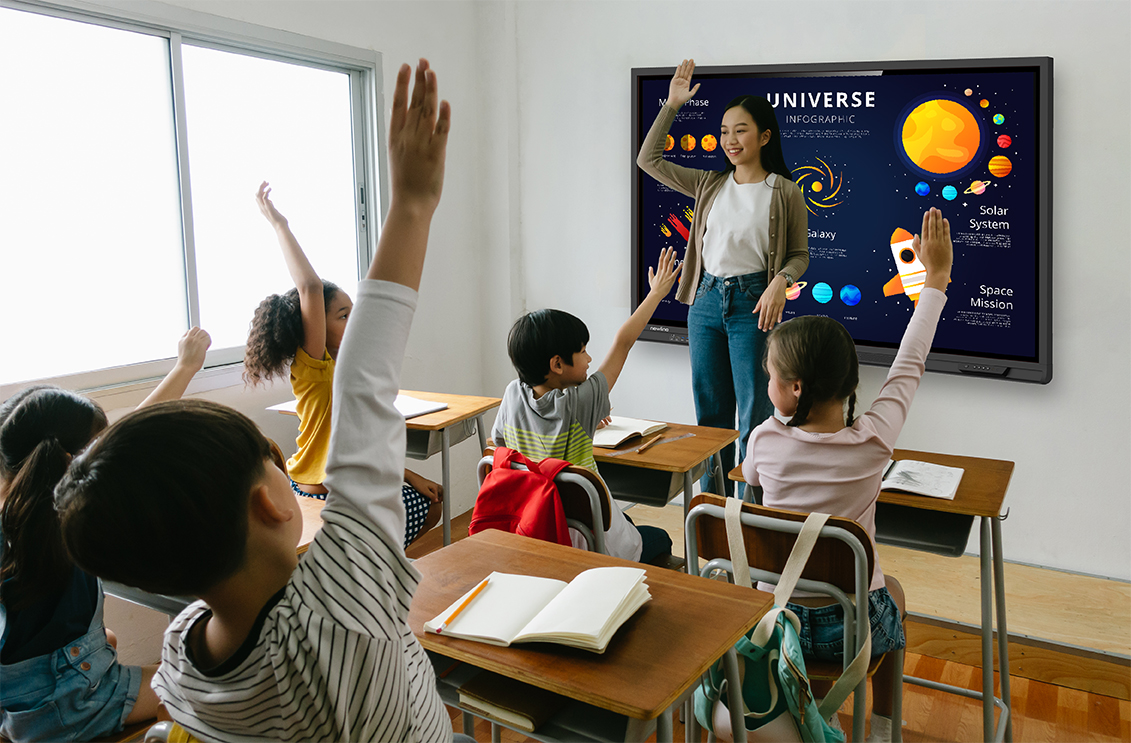
A handwritten question, a diagram that grows as students contribute, and an explanation worth saving. Many lessons take shape this way, bringing together the teacher’s preparation and the ideas that emerge in the classroom.
Newline Android Whiteboard is Newline’s Android whiteboard software, combining writing tools, artificial intelligence, multimedia resources and options for saving and sharing lessons. It allows teachers to develop explanations visually, enrich them with different materials and return to them later to continue working.
It brings together familiar classroom activities: writing, organising ideas, asking questions, annotating documents and sharing what students have learned. All within a single environment.
What Is Newline Android Whiteboard and What Can It Do?
Newline Android Whiteboard turns an interactive display into a workspace where teachers and students can write, draw, add documents and connect concepts.
Its infinite canvas allows an explanation to expand beyond the initial screen area. Backgrounds can be customised with colours, patterns or personal images to suit the activity.
For example, a teacher can begin a lesson with a PDF worksheet, highlight its key points, add students’ answers and save the result to revisit the following day. Prepared materials and classroom contributions become part of the same resource.
How Can Artificial Intelligence Help During a Lesson?
According to the product documentation, artificial intelligence is integrated into both Whiteboard Standard and Whiteboard Pro. To access its functions, users select an object with their finger or the selection tool, then tap the AI icon that appears.
This makes it possible to request assistance with the content already on the board: a passage that needs a clearer explanation, an idea that needs organising or a topic that could become the basis for questions.
Rephrase Text to Make Explanations Clearer
The description or paraphrasing function generates alternative wording from an existing text. It can help simplify a complex explanation, express a concept differently or prepare another version of teaching material.
Imagine a definition that is too technical for the class. The teacher can use this function to produce a more accessible version, review it and discuss it with students.
The tool provides a suggestion; the teacher decides whether it accurately conveys the concept and suits the class’s level.
Create Questions by Topic and Educational Level
Newline Android Whiteboard can generate questions based on the topic, educational level and number of questions required.
This function can support different stages of a lesson: exploring prior knowledge at the start, opening a discussion during an explanation or checking understanding at the end.
For example, after covering the water cycle, a teacher can generate several review questions, check their content and select those best suited to the group.
Organise Ideas with Concept Maps
The AI can generate concept maps from the information provided. Their structure, labels, colours and formatting can then be customised.
Concept maps make relationships between ideas visible. In a lesson about ecosystems, a map can connect living organisms, their environment and their interactions. In a language lesson, it can help organise the main ideas in a text.
The map becomes a starting point for explaining, asking questions and building understanding together.
Support Explanations with Images and Videos
The AI also suggests images and videos related to the content.
A visual resource can help explain a process, introduce an example or prompt a question that sparks curiosity. The teacher selects which material to show and how to incorporate it into the activity.
Turn Handwriting into Digital Content
Writing directly on the display allows an explanation to develop at the pace of the lesson. The AI pen adds handwriting, mathematical formula and shape recognition to turn those handwritten marks into more structured content.
Each function serves a specific purpose:
- Handwriting recognition: converts handwritten words into editable text.
- Formula recognition: converts handwritten mathematical expressions into a clearer on-screen format.
- Shape recognition: refines hand-drawn geometric shapes.
Handwriting recognition uses MyScript and allows users to select and download the languages they need.
For mathematics, there is an important distinction: the pen recognises formulas but does not solve equations. Whiteboard Pro includes a separate scientific calculator for performing calculations.
Tools for Explaining, Organising and Participating
The usefulness of a digital whiteboard also depends on its everyday tools. Newline Android Whiteboard includes a pen, brush and highlighter with adjustable colours and stroke widths, alongside 2D and 2.5D shapes.
Sticky notes allow users to capture ideas and move them around the workspace. Smart tables adapt to the content drawn inside their cells. Rulers and a compass support geometry activities.
Objects can be copied, grouped, locked and moved in front of or behind other elements. For example, a teacher can lock a background image in place while building an activity around it.
Split the Whiteboard to Compare Solutions
Split-screen mode creates two or three work areas, each with its own writing and erasing tools.
Students can use these areas to develop approaches side by side and then explain their reasoning. In a maths activity, each area might show a different way of tackling the same problem.
When closing this mode, users have the option to capture the work they have created.
Documents and Multimedia Resources Within the Whiteboard
Newline Android Whiteboard allows users to import images, PDF documents, audio and video files from a USB drive or the display’s internal storage.
This makes it easy to use materials a teacher has already prepared. A worksheet, photograph or audio clip can become part of the explanation and be combined with annotations.
The software also includes image search, web browsing and YouTube video search within its environment. Image search offers a Creative Commons licence filter, helping teachers find resources with usage terms that may suit their teaching materials. The licence conditions of each resource should be checked before reuse.
Access Google Drive and OneDrive
The whiteboard supports access to files in Google Drive and OneDrive, with authentication completed on a mobile device.
Users scan a code and follow their provider’s sign-in process. Once authenticated, they can access their files and incorporate them into the lesson.
Annotate Content Displayed on Screen
Annotation mode allows users to write over the content displayed on screen, regardless of its source, and save screenshots.
It can be used to highlight part of a presentation, discuss an image or draw attention to the key elements of a document. An explanation that develops during the lesson can then be saved with its visual context.
What Does Whiteboard Pro Add?
Whiteboard Pro extends the whiteboard’s capabilities with remote lesson viewing and subject-specific resources.
Follow an Explanation in Real Time
Collaboration mode allows teachers to create a session and share access through a link or QR code. Participants can view the teacher’s writing and drawings on their own devices in real time.
This makes it easier to follow an explanation as it develops. The capability described in the documentation is live viewing; it does not imply that all participants can edit the whiteboard simultaneously.
Subject Resources and a Scientific Calculator
Whiteboard Pro includes resources for mathematics, physics, chemistry, geography, biology and music, as well as currency-related resources.
It also includes a scientific calculator and specialised backgrounds, such as Cartesian grids and logarithmic scales. These tools allow teachers to adapt the workspace to the needs of each lesson.
The documentation lists Whiteboard Pro for Lyra Pro, Elara Pro, Elara Elite, Vega Pro and OPS EDLA. Specific feature availability should be checked against the device and installed software version.
How to Save and Share a Lesson
An explanation can remain useful long after a lesson ends. Newline Android Whiteboard offers different ways to preserve work, depending on how it will be used.
The IWB format saves an editable session, allowing users to reopen it and continue working. It is the appropriate option for returning to an activity or reusing material as a starting point.
To share a version for reference, the whiteboard can export content as PDF, PNG or JPEG files.
QR code export makes content accessible from users’ devices and offers optional password protection. According to the documentation, the code remains valid for seven days, so a copy of the file should also be retained if it will be needed later.
A Practical Example: From the First Idea to a Revision Resource
Imagine a lesson about the water cycle.
The teacher begins by writing a question: “Where does the water go when a puddle dries up?” Using the students’ responses, the teacher gathers their initial ideas and organises them into a concept map.
Next, the teacher adds an image and uses the highlighter to connect terms with the different stages of the process. If a definition proves difficult, the paraphrasing function can help prepare an alternative explanation.
Before finishing, the teacher generates a few questions suited to the students’ educational level, reviews them and uses them to identify concepts that need further attention.
Finally, the session is saved in IWB format to continue in the next lesson, and the completed diagram is exported as a PDF.
The result is a resource that captures both the teacher’s preparation and the contributions made during the lesson.
Frequently Asked Questions About Newline Android Whiteboard
Does Newline Android Whiteboard Include Artificial Intelligence?
Yes. The documentation describes AI integrated into Whiteboard Standard and Whiteboard Pro, with functions for paraphrasing, question creation, concept maps and multimedia suggestions.
Can It Convert Handwriting into Text?
Yes. Handwriting recognition converts handwritten words into editable text. It uses MyScript and allows users to select and download recognition languages.
Does the Mathematical Pen Solve Equations?
No. It recognises handwritten mathematical expressions and displays them on screen, but it does not calculate their solutions. Whiteboard Pro includes a separate scientific calculator.
Can Lessons Be Saved for Further Editing?
Yes. Sessions are saved in IWB format so they can be reopened and developed further. Content can also be exported as PDF, PNG and JPEG files.
Can Students Follow a Session on Their Own Devices?
Yes. Whiteboard Pro’s collaboration mode allows participants to join through a link or QR code and view the teacher’s writing and drawings in real time.
Does It Support Google Drive and OneDrive?
Yes. The software supports access to both services through authentication completed on a mobile device.
A Whiteboard That Helps Learning Continue
Newline Android Whiteboard connects what happens during an explanation with the material retained afterwards. Writing, documents and AI tools help teachers develop content during the lesson, while saving and export options make it possible to revisit and share that work.
For teachers, this means having different ways to explain an idea and respond to needs as they arise in the classroom. For students, it means being able to follow how an explanation develops and return to the work afterwards.